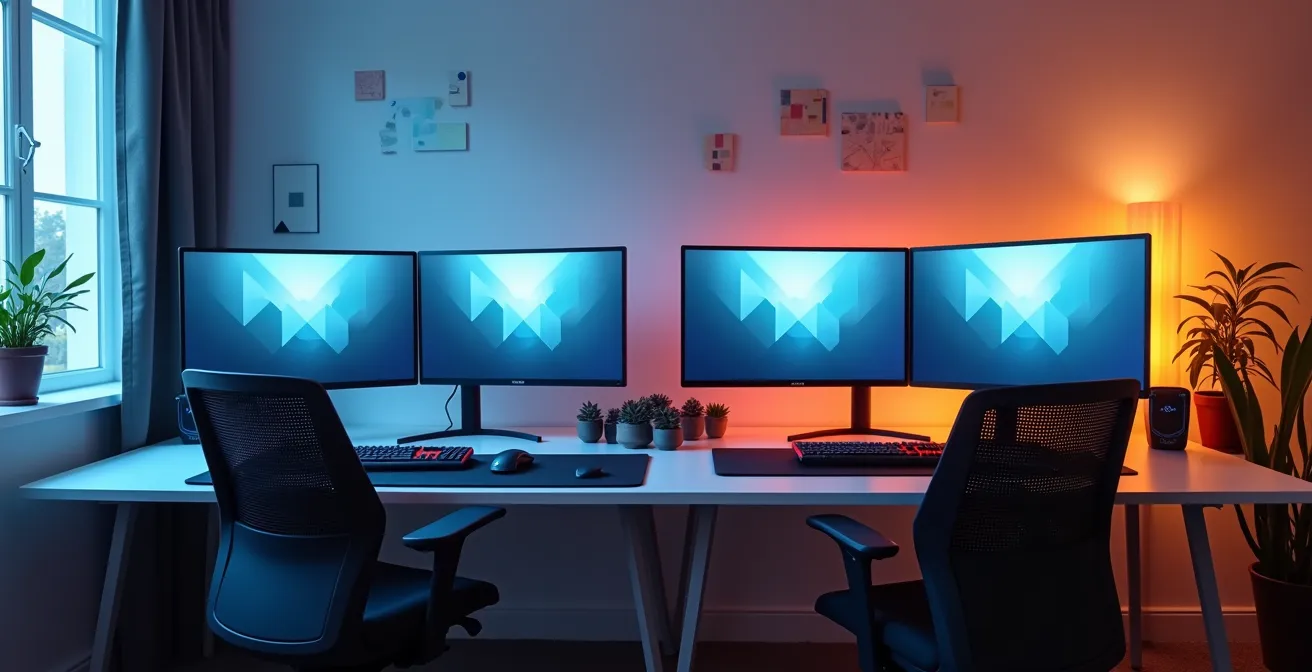
For most budget-conscious PC builders, 4K gaming represents a point of significant diminishing returns, where a doubling of hardware cost rarely yields a perceptible visual upgrade over a high-refresh-rate 1440p setup.
- The visual benefit of 4K over 1440p on standard 27-inch monitors is often negligible at typical viewing distances.
- Achieving 4K requires a substantial “ecosystem tax” in the form of more expensive GPUs, certified cables, and robust cooling solutions.
Recommendation: Prioritize a high-refresh-rate 1440p monitor and a balanced GPU. This configuration offers a far superior cost-per-frame value and a tangibly better gaming experience for competitive and fast-paced titles.
The debate between 1440p and 4K gaming is a rite of passage for any PC builder mapping out a new rig. The common wisdom presents a simple trade-off: 4K offers superior image clarity, while 1440p provides smoother frame rates. This binary choice, however, dangerously oversimplifies the financial reality. The leap to 4K isn’t just about buying a different monitor; it’s an entry ticket into a new, more demanding hardware ecosystem. It comes with a hidden “ecosystem tax”—a cascade of escalating costs for GPUs, cooling, and even cabling that are often overlooked in the initial budget.
Many builders are seduced by the promise of “future-proofing,” believing that investing in 4K today will save them money tomorrow. But what if the pursuit of 4K’s marginal gains actively sabotages the performance and value of your entire system? The key question isn’t whether 4K looks better, but whether that improvement is perceptible enough to justify the substantial financial premium. Is it a smart investment, or are you paying a premium for pixels your eyes can’t even resolve?
This article moves beyond the surface-level discussion. We will deconstruct the true cost of a 4K setup, analyzing it not as a visual benchmark but as a financial decision. We will explore the science of pixel density, the forgotten costs of heat and connectivity, and the pragmatic compromises in game settings that can deliver a near-4K experience for a fraction of the price. By the end, you will have a clear, data-driven framework to determine where your money is best spent to maximize your gaming experience, not just your pixel count.
For those who prefer a visual summary, the following video offers a different perspective on achieving great gaming experiences on a budget, demonstrating that a balanced approach can yield fantastic results.
To provide a structured financial analysis, this guide breaks down the core components of the 4K vs. 1440p decision. Each section tackles a critical cost or performance factor, giving you the tools to make a pragmatic choice based on your specific budget and needs.
Summary: A Pragmatic Cost-Benefit Analysis of 4K Gaming
- Why 4K on a 27-Inch Monitor Is a Waste of GPU Power?
- HDMI 2.1 vs DisplayPort: Which Cable Do You Need for 4K 144Hz?
- The Heat Problem: How to Cool a Rig Built for 4K Gaming in a Small Room?
- Ultra vs High Settings: Which Visual Difference Is Actually Noticeable at 4K?
- When to Buy a 4K Monitor: Waiting for OLED Prices to Drop?
- Why Ray Tracing Consumes So much VRAM on Modern Cards?
- How to Calculate BTU Requirements for a Small Server Room?
- How to Tweak Ray Tracing Settings to Regain 20 FPS Without Ruining the View?
Why 4K on a 27-Inch Monitor Is a Waste of GPU Power?
The primary argument for 4K resolution is superior sharpness. However, this benefit is entirely dependent on a concept called pixel density (Pixels Per Inch, or PPI) and your viewing distance. For the average PC gamer using a 27-inch monitor, the jump from 1440p to 4K often crosses a sensory threshold where the human eye struggles to perceive the added detail. A 27-inch 1440p monitor has a PPI of 109, while a 4K monitor of the same size boasts 163 PPI. While this seems like a massive leap, research shows that beyond 110-140 PPI at a typical desk viewing distance, the returns diminish sharply. The difference becomes academic rather than experiential.
This is especially true when you consider the 80cm to 1-meter optimal viewing distance for 27-inch monitors. At this range, the pixel structure of a 1440p screen is already nearly invisible. You are paying a premium for a level of detail your eyes physically cannot resolve during gameplay. This “wasted” detail comes at an enormous hardware cost, diverting your budget from where it truly matters: frame rate and responsiveness.
The financial trade-off becomes stark when comparing two builds at different price points. A high-refresh 1440p setup delivers a far more fluid and competitively viable experience for significantly less investment. The money saved on the GPU and monitor can be reallocated to faster storage or a better CPU, yielding a more balanced and powerful overall system. For a budget-conscious builder, the value inflection point is clear: 1440p at a high refresh rate is the smarter financial play.
The following table illustrates the dramatic cost and performance differences between two similarly-priced gaming setups, one targeting 4K at 60Hz and the other targeting 1440p at 165Hz. The data clearly shows the superior value proposition of the 1440p configuration.
| Specification | 4K 60Hz Setup | 1440p 165Hz Setup |
|---|---|---|
| GPU Required | RTX 5080 ($1200) | RTX 5070 ($550) |
| Monitor Cost | $500-700 | $300-400 |
| Total System Cost | $2000+ | $1200 |
| Average FPS | 50-65 (Ultra) | 90-120 (Ultra) |
| Competitive Advantage | Lower | Higher |
HDMI 2.1 vs DisplayPort: Which Cable Do You Need for 4K 144Hz?
Stepping into the world of high-refresh-rate 4K gaming introduces a cost and complexity often ignored: the cable. Simply owning a capable monitor and GPU is not enough. To transmit the massive amount of data required for a 4K signal at 144Hz, you need a connection that supports sufficient bandwidth. This is where the choice between HDMI 2.1 (48Gbps) and DisplayPort 1.4 (with Display Stream Compression, or DSC) becomes critical.
DisplayPort 1.4 was the standard for high-refresh 4K for a time, but it relies on DSC, a visually lossless compression technique, to achieve the necessary throughput. While effective, it adds a layer of processing. HDMI 2.1, conversely, offers enough native bandwidth to handle 4K 144Hz without compression. For maximum compatibility and future-proofing, a certified Ultra High Speed HDMI 2.1 cable is the recommended choice. However, it’s crucial that your entire signal chain—GPU output, cable, and monitor input—supports the same standard. A mismatch at any point will result in a bottleneck, preventing you from achieving your target resolution and refresh rate.

This is a key part of the “ecosystem tax” of 4K gaming. Cheap, uncertified cables can lead to signal dropouts, flickering, or an inability to enable the desired settings. Investing in a properly certified cable from a reputable brand is not optional; it’s a mandatory cost to ensure your expensive hardware performs as advertised, especially for cable runs longer than two meters where signal degradation becomes a significant risk.
Action Plan: Your 4K 144Hz Full Chain Certification Checklist
- Signal Source Verification: Confirm your GPU’s output port explicitly supports either HDMI 2.1 or DisplayPort 1.4 with DSC. Check the manufacturer’s official specifications.
- Display Input Check: Inventory the monitor’s input ports. Ensure it has a matching HDMI 2.1 or DP 1.4 port to connect to.
- Certified Cable Purchase: Acquire a cable that is officially certified for your chosen standard (e.g., “Ultra High Speed” for HDMI 2.1 48Gbps or “VESA Certified” for DP 1.4 HBR3).
- Signal Integrity for Long Runs: For any connection exceeding 2 meters (about 6 feet), invest in a premium or active optical cable to prevent signal loss and instability.
- Bandwidth Validation: After connection, use your GPU control panel or the monitor’s built-in diagnostics to confirm the full 4K 144Hz signal is being received without errors.
The Heat Problem: How to Cool a Rig Built for 4K Gaming in a Small Room?
A powerful GPU capable of 4K gaming is also a powerful space heater. The Thermal Design Power (TDP) of a high-end graphics card, like an RTX 4080 or 4090, can easily exceed 300-450 watts. Every single watt of power consumed is ultimately converted into heat and expelled into your room. This thermal load can quickly make a small office or bedroom uncomfortably warm, turning long gaming sessions into a sweaty ordeal. This isn’t just a comfort issue; excessive ambient heat can reduce the cooling efficiency of your PC components, potentially leading to thermal throttling and reduced performance.
The first step is to manage the PC’s internal temperatures. This involves more than just stock coolers. A high-quality case with excellent airflow, multiple case fans configured for a clear intake/exhaust path, and a robust CPU cooler (either a large air tower or an All-In-One liquid cooler) are baseline requirements. For a 4K-capable GPU, simply having good case airflow may not be enough. Many users find success by undervolting their GPU. This process reduces the voltage supplied to the GPU core, which can lower temperatures by 5-10°C and significantly cut down on power consumption with minimal to no loss in performance.
Beyond the PC itself, you must consider room-level cooling. A simple desk fan can help create cross-ventilation, but for a true 4K rig, this is often insufficient. Positioning the PC near a window or air intake can help, but a more direct approach is often needed. The most effective, albeit expensive, solutions involve actively removing heat from the room, such as with a portable air conditioning unit or a window exhaust fan. These tiered strategies allow you to match your cooling investment to your thermal output, a necessary consideration in the total cost of a 4K gaming ecosystem.
Ultra vs High Settings: Which Visual Difference Is Actually Noticeable at 4K?
The pursuit of “maxing out” every graphical setting at 4K is a common goal, but it’s one that comes with a steep performance penalty for often imperceptible gains. The difference between “Ultra” and “High” settings is frequently found in subtle effects that are almost impossible to notice during fast-paced gameplay. As a value-focused consultant, your “performance budget”—your target FPS—is your most valuable currency. Spending 20-30% of your performance for a 1% visual improvement is a poor investment.
Certain graphical settings are notorious “performance hogs” with low visual impact. These should be the first ones you turn down to reclaim precious frames. Key culprits include:
- Volumetric Effects/Fog: Dropping this from Ultra to High can net a 15-25% FPS gain with very little noticeable change in atmospheric density.
- Shadow Quality: In motion, the subtle difference between high-resolution soft shadows and slightly less-defined ones is negligible, but the performance improvement can be 10-20%.
- Ambient Occlusion: This effect adds contact shadows where objects meet, but reducing it from HBAO+ to a standard SSAO can boost FPS by 8-12% without drastically altering the scene’s depth.
The goal is to create a visually stunning experience that remains fluid and responsive. As experts from the acclaimed analysis group Digital Foundry often note in their benchmarking, “subtle differences in texture filtering or shadow resolution become imperceptible during fast-paced gameplay.” By being selective with your settings, you can achieve an image that is 95% as good as full “Ultra” while running 30-50% faster. This pragmatic approach allows a less powerful, more affordable GPU to deliver an excellent 4K experience, or it can push a high-end card well into high-refresh-rate territory.
When to Buy a 4K Monitor: Waiting for OLED Prices to Drop?
For many, the holy grail of display technology is OLED, with its perfect black levels and instantaneous pixel response times. The allure of a 4K OLED gaming monitor is strong, but the current market presents a stark financial reality. As a pragmatic builder, timing your purchase is as important as the purchase itself. Right now, the “OLED tax” is significant and must be factored into any value calculation.
Current market analysis reveals a major price chasm. A top-tier 27-inch, 240Hz 4K OLED monitor can easily cost over $1,000. In contrast, a high-quality 27-inch, 180Hz 1440p IPS monitor can be found for around $300. This isn’t a small price gap; for the price of one 4K OLED monitor, you could buy a 1440p IPS monitor and a powerful GPU like an RTX 4070. The investment question becomes: is the improved contrast of OLED worth forgoing a massive leap in graphics processing power?

Furthermore, current OLED technology for monitors is not without its trade-offs. The risk of permanent burn-in from static HUD elements in games remains a long-term concern, despite manufacturer mitigations. Many OLED displays also use an aggressive Auto Brightness Limiting (ABL) feature to manage power and heat, which can noticeably dim the screen during desktop use or in bright scenes. Finally, the choice between a glossy finish (for maximum perceived contrast) and a matte finish (to reduce reflections) is a compromise you must make. Emerging QD-OLED technology promises better color volume but still carries a significant price premium.
The prudent financial advice is to wait. As manufacturing yields improve and competition increases, the price of 4K OLED gaming monitors will inevitably fall. The “value inflection point”—where the price is justified by the performance—is likely still 12-24 months away for the average builder. For now, a high-quality IPS panel remains the king of value.
Why Ray Tracing Consumes So much VRAM on Modern Cards?
Ray tracing (RT) creates breathtakingly realistic lighting, reflections, and shadows, but it comes at a tremendous computational and memory cost. The reason it’s so demanding on your GPU’s video memory (VRAM) lies in how it fundamentally changes the rendering process. In traditional rasterization, the GPU works with simplified data. With ray tracing, the GPU must store and access a massive, complex data structure called a Bounding Volume Hierarchy (BVH). The BVH contains the geometric information of the entire scene, allowing the GPU to calculate the path of individual light rays as they bounce around.
This BVH structure is enormous, especially in detailed game worlds at 4K resolution, and it must reside in your GPU’s VRAM for fast access. When you enable ray tracing, you are essentially asking your GPU to load this massive architectural blueprint of the game world into its limited memory, alongside all the high-resolution textures required for 4K. As one hardware analyst aptly put it, “VRAM is your workbench. 1440p gaming is a neat desk. 4K gaming with ray tracing is like trying to build a full-scale architectural model on a tiny coffee table.”
This is why VRAM capacity is a critical specification for 4K gaming. GPUs with 8GB or 10GB of VRAM can quickly become a bottleneck. When the VRAM is full, the system has to swap data with your much slower system RAM or even your SSD, causing severe stuttering and performance drops. Recent GPU discussions confirm that modern games can easily exceed 12GB of VRAM at 4K with high settings and RT enabled. This VRAM requirement is a major component of the 4K “ecosystem tax,” pushing builders toward more expensive GPU tiers (16GB or more) to ensure a smooth experience.
How to Calculate BTU Requirements for a Small Server Room?
While the title refers to a server room, the thermal principles are identical for a high-performance 4K gaming PC, which functions as a compact, high-heat server. Quantifying this heat output is the first step to managing it. The standard unit for measuring heat is the British Thermal Unit (BTU). You can calculate your PC’s approximate heat output using a simple formula: convert the total power consumption of your components (TDP) from watts to BTU/hr.
The core formula is straightforward: 1 Watt is equivalent to 3.41 BTU/hr. Therefore, you can estimate your rig’s heat generation by summing the TDP of your primary components (CPU and GPU) and multiplying by 3.41. For example, a system with a 125W CPU and a 320W GPU has a combined TDP of 445W. The heat output would be 445W * 3.41 = 1517 BTU/hr. This is roughly equivalent to running a small portable space heater in your room every hour.
This calculation provides a tangible metric for the thermal load your gaming rig places on a room. Understanding this figure is crucial for selecting an appropriate cooling solution, whether it’s simple fans or a dedicated portable AC unit. A system generating over 2000 BTU/hr will almost certainly require more than just opening a window to maintain a comfortable environment during intense gaming sessions.
The following table, based on thermal load calculations for gaming PCs, provides a clear profile of the heat generated by different gaming rig configurations, translating abstract wattage into a relatable equivalent.
| Configuration | Combined TDP | BTU/hr Output | Heat Equivalent |
|---|---|---|---|
| Core i5 + RTX 4060 | 230W | 785 BTU/hr | Small space heater (low) |
| Core i7 + RTX 4070 Ti | 350W | 1194 BTU/hr | Medium space heater |
| Core i9 + RTX 4090 | 550W | 1876 BTU/hr | Large space heater |
Key Takeaways
- The perceived visual gain from 1440p to 4K on a 27-inch monitor is often minimal, while the hardware cost is substantial.
- Achieving a stable 4K high-refresh-rate experience requires an “ecosystem” investment in a powerful GPU, certified cables, and robust cooling.
- Upscaling technologies like DLSS/FSR offer the most pragmatic path, providing near-4K quality with ray tracing at a fraction of the performance cost.
How to Tweak Ray Tracing Settings to Regain 20 FPS Without Ruining the View?
For a budget-conscious builder, enabling ray tracing at 4K doesn’t have to be an all-or-nothing proposition. The most effective strategy is to treat graphical settings as a “performance budget” and make targeted, high-impact compromises. Not all ray tracing features are created equal; some have a massive performance cost for a subtle visual reward. The key to regaining performance is to identify and lower these specific settings first.
Generally, the hierarchy of visual impact versus performance cost for RT features is as follows:
- Ray Traced Reflections: This has the highest visual impact, transforming flat, screen-space reflections into physically accurate ones. It’s often worth the high performance cost (20-30%), so it should be kept at High or Ultra if possible.
- Ray Traced Global Illumination (RTGI): This provides realistic light bounces and color bleeding, greatly enhancing scene realism. It has a very high cost (25-35%), and dropping it to Medium is often an acceptable compromise.
- Ray Traced Shadows: While producing perfectly soft and accurate shadows, the difference from traditional high-quality shadow maps can be subtle in motion. With a medium performance cost (15-20%), this is often the first RT feature to lower or disable for a significant FPS boost.
However, the single most powerful tool in your arsenal is an upscaling technology like NVIDIA’s DLSS or AMD’s FSR. By running the game at a lower internal resolution (like 1440p) and using AI to upscale the image to 4K, you can gain a massive 40-50% performance improvement. The “Quality” mode of these upscalers provides an image that is often indistinguishable from native 4K in motion. This strategy is the ultimate compromise: it allows you to enable high-impact RT features like reflections and GI while maintaining high frame rates on a more affordable GPU. An upscaled 1440p image with RT on will almost always look and feel better than a native 4K image with RT off.
Subtle differences in texture filtering or shadow resolution become imperceptible during fast-paced gameplay.
– Digital Foundry Analysis, GPU benchmarking methodology
Your final decision should be guided by this pragmatic framework. Instead of chasing the highest resolution, evaluate your next PC upgrade based on the total system cost, the tangible performance you’ll get in your favorite games, and the true value delivered by each component. A well-balanced 1440p high-refresh-rate system remains the undisputed champion of cost-per-frame value for the vast majority of players.